Showing posts with label Kindle 2. Show all posts

Undocumented Copy and Paste of 1) Highlights into Notes 2) Search phrases

COPY AND PASTE HIGHLIGHTS INSIDE YOUR KINDLE NOTES AND FOR KEYWORD SEARCHES

This is updated information from two postings for the Kindle 2 a year and a half ago, including the one for Searching a book for a name or character in the book without typing the name which was posted on June 14, 2009.

  Since then, we have the Kindle 3 (UK: K3), which changes the process just a bit.


Copy and paste words or phrases for Searches in a book or on the Net
As I've said, the Kindle keyboard is no speed demon unless we're counting the speed of mistakes that can be made on those little keys.  I've gotten used to it and use the keyboard often now because I'm forever searching in a book when I see a name and can't, as usual, remember who the character is, first introduced maybe 70 pages back.

  Searching on a name brings up a listing of each Kindle page or "location number" that has a mention of the name, word, or phrase being searched -- along with surrounding paragraph for context (and an active link to each location).

  Because the often multiple results are listed in divided rows down the screen, I can also get more context for the character just by perusing the several paragraph summaries.

  When I first posted this, I was riveted by a then new account of Columbine by Dave Cullen (the book later wound up on the Best Books of 2009 of several newspapers, including The NY Times, Los Angeles Times, Chicago Times, etc.)   The link in this paragraph quotes the Washington Post review of the wholly different take Cullen has on the incident.  There are a lot of people involved in this story, and I did want to remember who they were and the circumstances, which led me to post about the shortcut to finding all mentions of someone in a book.

  It's a great feature that many don't use.  We have choices of searching the book or the entire Kindle or Wiki or the full Net (free 3G Net searches from almost anywhere), using the 5-way button to select from all the options available as we move to the right.  The Kindle 1 offered searches of the entire Kindle (a much longer process) but none for just the book we're reading.

Copy and paste highlighted passages TO a note used in your Kindle
In connection with Amazon's new feature at the time which lets us see, on a private webpage for our Kindle, all our highlights and notes for each Kindle book we own, I noticed I'd done a lot of highlighting which is helpful for discussions, or as memory-joggers, but I'd typed very few notes.  Why?  It's because it takes a while to type on the small keyboard, accurately.

Notes we make are ALSO copied into our "My Clippings" file, which we can copy or move to our computers to print or edit.  Highlighted sections are also copied into that courtesy file.

 However, sometimes I'd like to add a thought about something from a passage I'm reading.  I really don't want to type the passage, so I've wished for a way to copy and paste an excerpt to my book's "Notes" box and add, to that Note, shorthand thoughts, on the Kindle.  This can be expanded on a computer later.  Wish granted.
The following steps are for For Kindle 2's, modified for Kindle 3's, and for DX's

  1.   Begin to highlight the sentence(s) you want to reference in your note by pressing down the 5-way button where you want to begin the copy.

  2.   5-way down, and at the last line to be excerpted, 5-way right, to the end of the referenced passage.   Do NOT press the 5-way button down to end the highlight.

  3.   Instead, press the space bar.  That'll bring up a search field.

  4.   Your now-highlighted passage is pasted into the Searchbar on Kindle 2's and DX's and into a Note-box on Kindle 3's.

  5.
  For Kindle 2's and DX's
   Now 5-way to the right, through several options, until you reach
   the "note" option.

  For Kindle 3's
   Upon a press of the spacebar, you don't get a Searchbox.
   Instead you get a Note-box as a main focus and
   with seemingly fewer options, but if you go to the bottom
   and keep 5-waying to the right, you'll see other options.
   In this case, we want to stay with the Note.

  6.
  For Kindle 2's, DX's
   Press down the 5-way button on "note" and you'll see
   the highlighted portion entered automatically into
   a Note-box.  You can now add some thoughts
   about the highlighted portion just pasted in.

  For Kindle 3's
   You are already in the Note-box and can save the note
   on the Kindle
   or save & share it on Facebook or Twitter. That process
   lets you write a cover note as well.

Tip: Anything you highlight, copy and paste this way, you have options to, instead, Google or search in Wikipedia or your Kindle's dictionary or on the Kindle itself.  But we've chosen "note" here because this makes notes about designated passages quite a bit easier.


Kindle 3's   (UK: Kindle 3's),   DX Graphite

Check often: Temporarily-free late-listed non-classics or recently published ones
  Guide to finding Free Kindle books and Sources.  Top 100 free bestsellers.
UK-Only: recently published non-classics, bestsellers, or highest-rated ones
    Also, UK customers should see the UK store's Top 100 free bestsellers.

Kindle Software Update v2.5.7 is ready for Kindle 2, DX, and DXG

AMAZON HAS PLACED A SOFTWARE UPDATE ON THE SERVERS TONIGHT for all Kindles earlier than the Kindle-3 model but later than the Kindle 1, and it further refines the large update last summer which introduced Collections ('virtual folders" or category "tags") plus Pan & Zoom and several other features.

This would be primarily a performance enhancement or maintenance update, as they have recommended this update privately to Kindle owners who reported a glitch or two at times, Amazon is now making it available for download if you want to get it earlier than you would if waiting for it to be slowly distributed over wireless globally during the next few weeks.

They don't say what the update includes and they seldom do with the smaller updates.  For now, their explanation is:
' Software version 2.5.7 includes performance improvements to software version 2.5.  We welcome your feedback about this latest software version.
  Please send us an e-mail. '

  The Kindle Community forums already have reports that the Kindle seems faster to some who have tried it and that the screen contrast seems improved.

Instructions at their Update page are detailed, and for convenience I'll include the bulk of it here, but you should bookmark that page and also go there to see troubleshooting procedures if you don't see the update starting.  The page also summarizes the new features of v2.5 when it first came out last summer.


' Applying Kindle Software Updates


If you have a software version prior to 2.5 [Andrys' note here: or up through 2.5.6], you can download the latest Kindle software update, version 2.5.7, to your computer and transfer it to your Kindle via USB.

To determine your Kindle software version, press the Home button, then press the Menu button. Navigate to "Settings" by moving the 5-way controller down, then press the 5-way controller to select. The version information is located at the bottom of the screen:

Image of version information (Kindle)

Here's how to download version 2.5.7:
  1. Determine which type of Kindle you have: Look at the first 4 digits of the serial number located on the back of your Kindle or from Home, select Menu, then Settings. On the Settings screen you will see the Kindle version at the bottom of the screen. If you see "Version Kindle 2.5" or earlier, please proceed with the steps below to update your Kindle to the latest software.

    Note: If your Kindle is in a cover, please follow the instructions that came with the cover to ensure you carefully remove your Kindle before attempting to check for the serial number on the back.

  2. Download your software: Visit the appropriate link below to download the Kindle 2.5.7 software update file directly to your computer:

    [Andrys here:  In the future, go to the Amazon Update page to do the downloads as they may update the files there again, later on.]

Image of Kindle


Kindle (U.S. Wireless): Download 2.5.7

Your serial number will start with "B002"

Kindle Free 3G: Download 2.5.7

Your serial number will start with "B003"


Image of Kindle DX


Kindle DX (US Wireless) : Download 2.5.7

Your serial number will start with "B004"

Kindle DX (Free 3G) : Download 2.5.7

Your serial number will start with "B005"


Image of Kindle DX


Kindle DX (Free 3G) Graphite: Download 2.5.7

Your serial number will start with “B009”

Software version 2.5.7 includes performance improvements to software version 2.5. We welcome your feedback about this latest software version. Please send us an e-mail.

  1. Transfer software to your Kindle: Turn your Kindle on and connect it to your computer using the USB cable. Drag and drop the new update file from your computer to the Kindle drive. (The drive contains a number of folders - such as "audible," "documents," and "music" - and is typically displayed as a "device" icon).
  1. Monitor file transfer and disconnect: Check your file transfer progress to ensure file transfer to your Kindle is complete before disconnecting. After the file transfer is complete, eject the Kindle to safely disconnect Kindle from your computer. Disconnect the USB cable from your Kindle and your computer.

  2. Start the software update: Go to the Home screen, press the Menu key, and select "Settings." Press the Menu key again, and then select "Update Your Kindle." (This option will be grayed out if the most recent update has already been installed.) Select "Ok" when prompted if you want to perform an update. Your Kindle will restart twice during the update. After the first restart, you will see "Your Kindle is Updating."
  3. Once the update is complete: Your Kindle will automatically restart the second time. When you go to the Settings page, you should notice “Version: Kindle 2.5.7” at the bottom of the screen. Once you see this, your update is completed. '


Kindle 3's   (UK: Kindle 3's),   DX Graphite

Check often: Temporarily-free late-listed non-classics or recently published ones
  Guide to finding Free Kindle books and Sources.  Top 100 free bestsellers.
    Also, UK customers should see the UK store's Top 100 free bestsellers.

Tip for the absent-minded: checking what day it is - UPDATE3

UPDATE 9/7/10 - Robert Presser found that the old delightful Day, Date, Time result (with '@t') no longer works in the old way after software update 2.5.x for Kindle 2, and I found it doesn't work for Kindle 3 either.  But there's a new way.

  Using "@time" now will get you the full Date as well as Time, in longer format, at the top of unwanted search results for 'time' if you want that info while reading.  And there's more, as Diane tells us below.

UPDATE2&3, 9/7/10 - Diane Gorman added in the Comments that the Date/Time info we get now is available without the '@' sign, so you can just enter 'date' or 'time' to start the search we don't want but which will give us the date/time info at the top of the search results.
  AND best, clicking on that top piece of info, which is a LINK to the top 'search result' for 'date' or 'time,' gives THE DAY + Date and Time.

   I've modified the tip below for the above and also to give examples of using a URL from the home page in two ways.

First postings of this tip in its original form, June 2009, with updates
Reminder for newer Kindle owners:  If you're ever reading your Kindle and wondering, as I do too often, what day it is (or isn't), you can find out without putting down the Kindle.
  This long-format Date/Time AND linked-info-popup works for the older refurbished Kindle 2's and DX's, and the newer Kindle 3's and Kindle DXG.

  Typing 'time' or 'date from the HOME screen and clicking on 'search my items' (or just pressing the Return key because the current Action shown IS 'search my items) will get you, then, Day, Date & Time at the top of (unneeded) search results and then clicking on that underlined link will get you the full info with DAY and timezone.

NOTE: A search of the Kindle takes awhile of course, since it searches to see if a word is in any of the books you have on the Kindle.  The Kindle may SEEM to 'freeze' during the search, because the keys aren't workable while the Kindle is performing a search.  Be patient, because it'll end eventually. The spinning wheel at the upper left will go on for awhile.
  Doing subsequent requests for 'time' or 'date' seem to take less time though.

  MORE IMPORTANT though, the '@' is not needed anymore for the new date/time info, but I will leave in the "@" in the steps below so that readers know how to bring up the '@' sign at the beginning when that's needed.

Note that the '@' is not necessary for Date/Time but is needed for @dict, @help, @print [? - a useless one], @store, @url, @web, @wiki, @wikipedia, which I discussed a bit at a blog article in July '09 in a @-shortcuts entry.

  Also, the @url shortcut can be used on the home page by just typing, for example,
"@url google.com/reader/i" and then, since the 5-way button Action showing this is by default "search my items" and that's the one we want (as above) when using the "@url" feature, you can just press the Return key to start it.  I made a link-shortcut (just below) for the simpler, faster, and more reliable mobile Google Reader page for the Kindle:

  EXAMPLES (going to google reader or cnn)
    http://bit.ly/g-reader

  It's important to NOT use "http://" when using @url  and to use
      'search my items' as the 5-way button Action

  DIFFERENT EXAMPLE for the Main way to do a URL from Home Page:
    (not using '@url' "shortcut" at all)
  MAIN way to do this, though, is to just type the URL alone
      (No 'http://' and No '@url')
  Then, 5-way to the right until you get to "go to" and press the 5-way down
  on that.  It's easier because there's no '@' symbol to do.
      Try typing just m.cnn.com and 5-way to the right to "go to"
  to see how fast that does work now.

EXAMPLES OF HOW TO GET THE SYMBOL KEY AT HOME PAGE OR IN A BOOK:
At the Home page, press the Enter key (or the Del key under it) to bring up the search box.
Enter '@' by pressing SYM key and navigating to the '@' symbol
    and then press down on the 5-way (clicking it) to choose that '@' sign.
Type 'time' or whatever other function from the ones above.
Press Return/Enter key.
And you'll get DATE/Time in long-form on top of unwanted search results.
  (Again, this is just a how-to on bringing up the symbol box.
    The '@' sign is not needed for the Date function now.)

Getting expanded day/date/time information while reading a book
The main factor here is that 'date' or 'time' is used with "my items" as you saw above, although the Home screen's version of that option is worded "search my items."
  The "my items" wording means that it is looking through the entire Kindle.

  So, when you're in a book, the same principle holds.  If you type 'date' or 'time' while in a book, the default search action is "find" and that means find something WITHIN the current book. &nbps;Clicking that Action option won't work for day/date.  However, moving the 5-way button to the right just one step gets you "my items."  And that means Search the entire Kindle instead of just the book.  Click on that to start the search for 'date' or 'time'...

  As a result, so to speak, you get the same full Day/Date/Time and Timezone pop-up info from within the book that you get for the Home Screen search.

CAUTION repeated here:
NOTE: A search of the Kindle takes awhile of course, since it searches to see if a word is in any of the books you have on the Kindle.  The Kindle may SEEM to 'freeze' during the search, because the keys aren't workable while the Kindle is performing a search.  Be patient, because it'll end eventually. The spinning wheel at the upper left will go on for awhile.
  Doing subsequent requests for 'time' or 'date' seem to take less time though.

Also, you can use any  "@"-key shortcut  within books also, by:
. pressing spacebar to bring up the typing/search box and
. entering the "@[search word]" as before, and then
. doing a 5-way to the right to get to "My Items"
. and pressing down on the 5-way on that option.

[EDITED, on same day in July 2009]  Am just adding here that this is an undocumented feature that I discovered in June 2009 when experimenting with keyboard combinations.  I posted it with other "@x" features but my post about them was fairly incoherent and I'll modify and repost the still-working ones later.)


Kindle 3's   (UK: Kindle 3's),   DX Graphite

Check often: Temporarily-free late-listed non-classics or recently published ones
  Guide to finding Free Kindle books and Sources.  Top 100 free bestsellers.
    Also, UK customers should see the UK store's Top 100 free bestsellers.

Kindle 2's UK launch announcement said to be next week

Bookseller.com says today that "authoritative sources" report that Amazon will announce next week the arrival of the Kindle 2 to the UK, finally.
' One source told The Bookseller: "The key things they needed to tie up have been tied up.  The rumours I've heard are all saying next week."  The source confirmed that publishers had signed non disclosure agreements so would not be able to comment on the record.  But added: "I've heard it from multiple reliable sources.  I think they want to avoid the general kerfuffle of Frankfurt."
Qualcomm has been working on a wireless solution in the U.K. for the Kindle 2.

The article SEEMS to have an error though, in saying that Qualcomm provides the whispernet service for Amazon in the U.S. -- it's Sprint that does.  While the two companies have worked together on some projects and Sprint will support Qualcomm's "Brew" platform, they're separate companies and Sprint is the Whispernet provider in the U.S.  Qualcomm created the CDMA methodology by which Sprint operates and provides the service for Amazon here in the U.S.

After seeing how UK e-reader-interested people are on many Kindle forums and getting the Kindle the harder way (through numerous workarounds and not being able to use wireless with them but wanting the Kindle's other notable [study] features), the device will have an eager market.

Kindle Myths from news websites, No. 1

For weeks, I have seen gadget- or ereader-info sites parroting one another with inaccuracies such as actually writing that the Kindle does not allow the Kindle-user to go anywhere but to the Amazon store.
  It's not just one or two that write this, but site after site that repeats this erroneous info or writes that the Sony-store-only wireless for the coming Sony PRS-2121 will do what the Kindle wireless feature does.

  The sites I most enjoy because they are more thorough than that are Wired, Engadget, and Boy Genius.

  When a site has deleted a Comment of mine that lets them know something stated isn't actually so (quite often) and when they are holding current notes which means current readers won't see that their info is wrong, I will post some of these here.  Eventually Google.com and people looking for information on what the Kindle wireless does involve will be able to find the information then.

ZIKKER.COM ARTICLE
UPDATE: Allie Vance, noted below, re-posted an article by Shawn Oliver  (See Comments to this blog entry) but the comment I submitted to their comment box was "pending moderation."  I've since reposted the note to Shawn Oliver at HotHardware.com and reworded the below.

Last night, someone on Twitter pointed us to zikkir.com's article, a re-posting by Allie Vance, commenting on In-Stat's much-distributed article that reported that

"...current e-book owners desire email capability in the next e-book they purchase.  Longer battery life and Internet connectivity are the top two desired features among respondents who don’t currently own an e-book but plan to buy one in the next year.”

Yes, I can see that.  But then the article actually says the following
' ...but by and large, today’s batch of readers only feature a few (or one) of those, and not all three.
  Take the market-leading Kindle for example.  It has integrated WWAN through Sprint, but that only enables users to download new books on the go.  Users can’t check their e-mail or surf the Web, which is evidently a real bummer to most.
WHAT THE KINDLE ACTUALLY CAN DO, WEB-WISE
  Could anything be less true? -- that the Kindle can't surf the web or allow you to check your email?  Countless Kindle forum threads include discussions on what sites Kindle users can access and how that can be very helpful when you're not at home.  I have a freely-downloadable file of mobile-optimized websites to surf more quickly.

  I also have tips on using the web browser's various modes to help the loading speed or readability of the sites.  Never mind that Amazon itself puts a pre-set bunch of web-bookmarks on for Kindle users to try.
  But cellular wireless access will be slow, and the Kindle web access is definitely for the patient.  It pays off for some of us info-grabbers on the go though.

WIRELESS 24/7 W/NO MONTHLY CHARGES, CURRENTLY
That this comes with no monthly charges for now is just another plus, and Jeff Bezos has said it is a reason he set the price of the Kindle higher instead of locking people into a 2-year monthly fee on top of the unit, as is done with cell phones.
  The high cost of wireless is why the other readers don't and won't, for some time, be including web-browsing access in their e-readers as part of the cost -- not iRex at $800++, not Plastic Logic at $600-$800 as expected, and not Sony readers, including the Daily Edition due in December.

MY STILL-HELD RESPONSE ON THE ZIKKER SITE  
which shows "No Comments" currently.   [Update: 9:57 PM - it was deleted.]
" Andrys says:
Your comment is awaiting moderation.
September 16, 2009 at 4:36 am


Well, the Kindles, starting with Kindle 1 all have web browsers, though it’s impossibly slow on the Kindle 1. It is very doable on the Kindle 2 and Kindle DX and I do email on it and browse all kinds of sites to look up things when out on the streets. See some web images from my DX at
http://www.pbase.com/andrys/kindleplus

I also have tips and guides for using the web browser in more speedy fashion (it’s 24/7 free cellular access) and I use it for lookups in stores, in concerts, hearings).  Email is slow going with GMail but it’s doable and I also check yahoo mail.

On the Kindle two, I show some time with Facebook and with the Amazon forums,
at http://www.pbase.com/andrys/kindle2

Forgive the links, but since you mentioned these are wanted items but the Kindle doesn’t allow it, I needed to let you know it very much does. I also have a file for accessing mobile-optimized sites but you’ll see what I could get with the normal webpage of Engadget at the first link above.

– Andrys
kindleworld.blogspot.com

Is the Kindle only an E-Reader? Why $360259? Why $489379 for the DX?

[Updated for pricing change on July 8, 2009 - 11:48 PM] - Original posting was March 19, 2009 and this has been updated a few times.
New belated update for decreased prices, on November 12

It's a good time to take another look at what the Kindle 2 does for the price.

Many blog reviews and commenters have said that the Kindle is too pricey for "just an E-Reader."  But is that all it is?  Jeff Bezos has mentioned the high expense of the advanced 'radio modem' as well as the newest E-Ink screen, with its 16 shades of gray and a faster processor.

The 24/7 "always On" wireless access to the global net with no time charges for Kindle users would be one reason it's $360 $299 [price reduced July 8, 2009] $259 [price reduced October 6, 2009].

[Prices changed later but am not modifying the part below, written May 2009]
  UPDATED: May 2009 to cover the coming 9.7" screen Kindle DX which has a screen surface area 2.5" times the size of the Kindle 2, priced at $130 more ($489) and with native Adobe support for PDFs.  The other information below remains true for the larger DX.  Amazon is taking pre-orders now, for earlier shipping dates.  Note that the closest big-screen e-reader (Irex Iliad) is $860~ with wireless of some type.

UPDATED: 4/25/09 from original posting of March 19: I've been asked about any additional factors that might justify the cost of the Kindle.  Originally posted March 19, 2009 at 8:07 am upon starting 'A Kindle World' blog, this article now also includes notes on non-Internet-access (non-wireless) features that are missing on other e-readers or which aren't as well implemented on them.  The additional information is integrated with what was written earlier.

Sony's advanced model, PRS-700, has 8 shades but also a touch screen and side-lighting.  Unfortunately, the two hot features on this Sony have caused reviews (see NYT's David Pogue's) citing a loss of clarity as well as even lighting and glare.  While the Sony doesn't have the Kindle's cell-phone style wireless Net access, much less 24/7 access at no monthly (or hourly) cost, the Sony costs more.  It does handle more formats in native format (ePubs and PDFs -- although reviews can be scathing about the readability of its small PDF fonts at highest font setting vs the Kindle's conversion results, but Calibre allows us to convert pdfs, ePub and Lit files to Kindle format now, while MobiPocket Creator converts PDF (and other files) into Kindle format and PDFReader may do a better job with image-based ones.  Stanza is the one to use for those with Macs.  Savory is an experimental utility that converts PDFs ON your Kindle, offering both text- and image-based conversions.
UPDATE - 4/27/09: Amazon bought Stanza today.

Unlike searches for wi-fi hot spots (often with fees), Amazon's partnership with Sprint for use of its EV-DO cellphone network means that the Net is accessible almost anywhere a cell phone can be used, and with the Kindle there are no monthly data-charges as there must be for phones -- usually at least $30/mo for a limited plan, which at 12 months = $360.  An interesting figure, I thought!


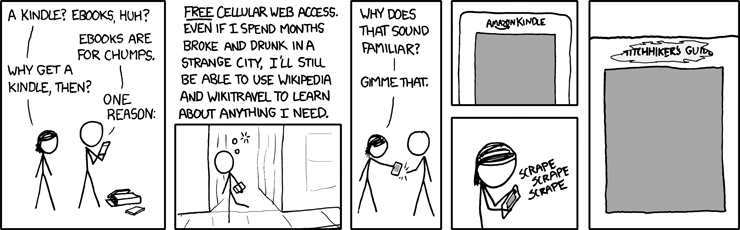
From xkcd

The web access is somewhat klunky although less so with the Kindle 2.  There are 3 modes: Basic, Advanced, and Advanced with javascript - and we can turn images off or on depending on how eager we are for data vs images.  The mobile versions of many websites make access quicker and with better formatting.

I use the 24/7 Net access when outside my home, often at stores where I can decide whether to buy something by Googling the product's model number and adding the word "review" -- this has saved me from some bad buys and also confirmed some possible buys would be good ones.

See my Tips for using the Kindle's web browser more effectively.

I was wishing, one day, that I could go check an internet machine somewhere to get information on something I wasn't sure about buying and suddenly remembered I had one in my purse :-)  At cafes, I often check something on the web.  Though I obviously love using the wireless, I am not out that often, so I don't think it's a super drain on Jeff.   (Click for a larger photo of my earlier Kindle, webbing at a cafe.)
  And here's a photo of my Kindle 2, posting to a forum and Googling a product at Target.

New Amazon fees affect some Kindlefeeder options below.
I also use kindlefeeder.com to get feeds onto to my Kindle each day (a manual click must be done now, for the free service (as automated daily sends will now cost $20/yr), and this includes up to a dozen feeds in your downloaded set (one file with table of contents for each periodical).  but good labor goes into this great service, so Daniel Choi posted that donations are welcome and his users have been responsive.  My subscription at kindlefeeder includes Engadget, Gizmodo, full-feed HuffingtonPost, NY Times Most Emailed, etc.   The set of several daily publications comes as one item each day, with a table of contents listing of and links to each downloaded periodical.  No need, in this case, to use the wireless when reading -- outside of the quick download of the daily set -- unless a feed is mainly summaries with links to the full article online.

But I also subscribe to Amazon's Kindle subscriptions that I find timely and well-written -- those include The New Yorker (w/the cartoons) at $3/mo and the NY Times Latest News, at $2/mo. -- this latter comes 2 or 3 times a day, anytime there's a big headline, which means a meaty story and there are usually about a dozen articles each download.
  While I can and did get The New Yorker feed for free, I prefer the special Amazon formatting for periodicals, allowing fast navigations to sections or to articles within sections and the usual Previous and Next article movement with the 5-way button.  I also love getting the cartoons with it.

MANUALS AND GUIDES FOR PRODUCTS BOUGHT:
I just about always lose my guides or manuals for various electronics and have now gone online to get the pdf versions, which I send to my Amazon Kindle address for auto-conversion and then they're auto-sent to my Kindle, where I can always find them (and am able to search for specific words).  This won't work well with PDFs that are primarily image-scans, as they'd load slowly and be too small for clarity and readability.  (Updated: There's a 15c charge on those conversions and deliveries direct to the Kindle for files up to 1 megabyte in size and 15c per megabyte after, rounded up -- but you can instead choose Amazon's free conversion and delivery to your regular email instead and and you can then transfer the file to the Kindle via the USB cable that comes with it.)

WEB INFO to your Kindle:
If interested in website info you've found, you can highlight the info, copy it the usual way (Windows: Ctrl-c or Mac: Cmd-c) and paste it into Winword or to a basic text file, then e-mail it to your Kindle, at which point it becomes a file of its own readable on your Kindle.  As mentioned in other entries, there are several ways to convert any web info into a PDF file as well, which then can be sent to your Kindle for Kindle-izing, but normally these should not be complex multi-columned pages although the Savory utility can work around that also.  More detailed info on the special image-type conversion here.

SEARCHING A BOOK OR ENTIRE LIBRARY on your Kindle:
The Kindle 2 now searches, as a default, only the book you happen to have open and you have the choice of it searching your entire Kindle library, which will then pretty quickly bring up all the books and periodicals with the word or phrase in question, showing summaries of each, and links to the appropriate pages.
  It also offers a search of google, if you prefer, or the Wikipedia, but you'll be asked to turn on your wireless in those cases.

  A SEARCH TIP from MobileRead forum's "Hemipod":
    "If you use the 5-way control to highlight a phrase, but don't finish the highlight, but instead press a key as if you were starting a search, the highlighted text is copied and pasted into the search box. Very, very easy way to search, say, wiki, for a phrase that's in your book."

INLINE DICTIONARY
Unlike the fatiguing and convoluted inline dictionary process for the Kindle 1, the Kindle 2 has direct cursor access to any word on a book or periodical's page, and if placed on a word, a 2-line definition of the word shows at the bottom of the screen (if the Oxford American dictionary includes the word).  If interested in the full dictionary definition plus pronunciation, you can press the Enter key on the keyboard to get that.  I used to guess the meaning of words via my understanding of the context, and it's been instructive for me :-) to actually use this feature at times.

HIGHLIGHTING, ANNOTATIONS KEPT WITH EACH BOOK (with Amazon library-backups for books bought from Amazon)
  You can easily highlight passages now, including highlighting that goes over several pages if wanted.  You can also make notes with the keyboard.  These are all searchable also, as described above for searching words or phrases.

  If the book was purchased from Amazon, then the store keeps a backed-up copy of your notes and highlighting of any book (kept in your library area at Amazon) so that if you delete the book either for space or to exclude it from your display of current titles on the Kindle, you can later re-download the book at no charge, and your highlighting and notes will be with the book. Your annotations are also kept, for viewing by book, on a password-protected private webpage when you have not disabled backup of annotations to the Amazon servers.  Here's a sample.

CLIPPINGS
The Kindle 2 now allows you to clip an entire article from a subscription newspaper or magazine with the press of a menu option.  These will go to your "My Clippings" file which is pure text.  As with any other e-reader, you can transfer the file to your computer via a USB cable and then edit it, since it collects all the clippings you've been making, which includes an extra copy of all highlighting you've done on various books so that you can use them in your text documents.  That way you can share with friends, if you have a computer, any information that's interested you enough to note it on your Kindle.  If you decide to delete the current "My Clippings" file from your Kindle the unit will create a new one for you the next time you highlight or make notes about something or when you request a clipping of an article you're reading in a periodical.  Otherwise, the Kindle just appends new notes to the file.

FONT SIZING AND LINE SPACING OPTIONS
I often find when reading normal books or magazines now that I almost instinctively start to make a movement to enlarge or decrease the font size or the spacing between lines. While almost any e-reader will give you a choice of font-sizes, the Kindle offers 6 font sizes and furthermore offers 9 settings for the amount of spacing between lines. Less spacing distance will get more lines to read on your screen while more distance may make a paragraph easier to read.  Key combo for line-spacing changes: press shift-alt together and then press a number between 1 and 9 to decrease or increase the line spacing from whatever your current choice is.  Default is '3' which is also the default for font size.

COST OF THE KINDLE PARTS
I've been amused by the reaction to recent articles about the cost of Kindle components, the general reaction equating the cost of components for the Kindle to the cost of building a Kindle and deciding that the amount over $185, from the [original] $360 price, makes it a 'cash cow' for Amazon.

 Those writers don't factor in what happens after the builders buy the components -- the manufacturing expense and the expertise to make the many features (beyond the usual e-book) work together well.  After selecting the components and readying the hardware and software conditions for the desired functions (involving a lot of paid people), then there's the mass assembling, transportation, warehousing, marketing, distribution, and management of inventory, plus (in Amazon's case) extensive customer support that's almost instantly reachable and normally more responsive than the usual (the one exception being Amazon's non-response about the lighter font issue of the Kindle 2 vs the Kindle 1).

Then there's the prepaid Sprint wireless, always 'On,' global net access which normally costs $30/mo. to have (minimum limited services) when added to basic cell phone service. That alone can cost $360, though I'm sure Amazon has a very good deal on it as long as we don't overdo the accessing (I might).  As pointed out in several entries here, netbooks given 24/7 cellular network wireless capabilities cost $60/mo. for the unlimited acccess.  Yes, it's faster access, with color, but it's aosl $720/year more on top of a netbook's unit cost

TEXT-TO-SPEECH FEATURE:
While newspapers have duly noted publisher reluctance to allow their books to be read "out loud" by the Kindle 2's automated mechanical-reader voice (they consider this as 'competition' for the professional actors reading novels with human inflections!), most publishers are allowing it. (Some Amazon users and disability rights proponents are boycotting Random House for their clueless policies against this feature)  And of course the feature can be used for reading aloud personal docs or periodicals you've downloaded if you're busy doing something else such as cooking or driving at the moment.   (I want to do a separate section on "Tom," the male voice for the Kindle because that's an intereting story.)  At any rate, this is not a feature most of us would use for any length of time!  But it's useful for the times you want to keep "reading" but must get on to other things for a bit.
  You can speed up or slow down the voice, and it turns pages for you :-).
  See a fun videoclip using the Kindle voice to read a part for a screenplay.

MP3's AND AUDIBLE BOOKS
There is a feature that allows you to play mp3s placed on your Kindle by you but they play only in the order in which they've been put on the reader.  The focus has not been on the Kindle being a music-playing machine.  This allows you to hear some of your favorite music while reading a Kindle book but it's a battery drainer. You can also put mp3s under the 'Audible' folder (since the Kindle plays Audible books also) and play those on demand but cannot read on the Kindle at the same time with this choice.  You can play mp3-audiobooks also.

NON-AMAZON BOOKS:
By the way, Kindle users are not tied to the Amazon store, although it now holds 7,400  20,000+ free books -- mainly public domain classics.  The few free books at Amazon that are not public domain ones (and usually available briefly) are found here.

  Tip:  Here's a long Amazon-forum discussion thread with tips on a million Kindle books (mostly free) for your Kindle from other sites.

OTHER UNUSUAL FORUM DISCUSSIONS
  Tip:  Amazon forum users talk about the unusually creative ways in which they use their Kindles.  Definitely an interesting read.

  Tip:  4/28/09 - Another interesting thread about how watching History Channel (or The Daily Show) and other tv shows about events have caused some to look up Kindle books on the subject that kindled interest :-)

  Tip:  4/20/09 - I was amazed at how many Huffington Post readers apparently have Kindles. In the thread for an article by Danielle Crittenden, some explain to her how much the Kindle can do despite a posting that deems the Kindle good only for reading books and not an Internet-aware device.
Getting Day, Date & Time with the Kindle 2 / DX (and more)

Originally posted 6/15/09 - 10:18 PM
UPDATE - Some of these don't work with latest software updates to Kindle 2, DX and Kindle 3 - See the portion for date that does still work in a later updated post.

ARCHIVES - Ignore the @t below, outdated as of July 2010

UPDATED 6/28/09 to add info (in green) from trying out new DX
UPDATED 7/5/09 to add info (in orange, at bottom), from another experiment.
UPDATED 1/2/10 FINAL one to show the actual message and to make this more coherent.
    It's called Tip for the absent-minded: checking what day it is.

ORIGINAL posting below. (I'd use the January 2, 2010 one though.)

I forgot about this feature until I was participating in a blog comment area, and I've decided to post the tip here too.

Typing '@t' from the HOME screen
will get you Day, Date & Time in a pop-up box.  No, it doesn't look like the quick image which I just grabbed, too lazy to do a printscreen right now.
At the Home page, press Enter key (below the ‘Del’ key) to bring up the search box.
Enter '@' by pressing SYM key and going one-up and one-right
    and then pressing 5-way down to choose that '@'
Type 't'
Press Enter key.
And you'll get the pop-up box.


This works with the DX also.
Also, both the Kindle 2 and the DX are able to use the @key shortcuts
  within books (exception: "@url") by:
. pressing spacebar to bring up the typing/search box
      when reading books/articles AND cursor is not in text body
        (otherwise start a 'search' through the Menu instead)
. keying in the @item and then
. doing a 5-way to the right to get to "My Items"
. and pressing down on the 5-way on that option
      instead of pressing the Enter key for default option "Find"...


Typing '@h' at the Home screen gets you a pop-up box saying
" Supported shortcuts: @dict, @help, @print [?] @store, @time, @url, @web, @wiki, @wikipedia "
We know that a one-letter abbreviation works for @time and @help...

(Interesting that the @print is there, looking ahead?)

UPDATE 6/15/09 - 10:18 PM.   Originally posted 6/15/09 4:45 PM - Added new find(s)


@store [searchterm] - reported by Elmo Glick
    Brings up the Kindle store with all books containing the search term in the title.

@p and @print - reported by Elmo Glick
Takes you to the Amazon Store of all places and shows you books with the work "print" in the title.   Gee, Amazon, that makes sense.

@url [www.website.xxx]
Don't type the "http://"
  Type just:
    &url [xxx.website.xxx]

      Then 5-way to right to "...my items" and press down.
That takes you to the website. - reported by Elmo Glick
A useful shortcut.

UPDATED 7/5/09 - ON THE OTHER HAND,
  You can also just type in the actual URL itself (and, again, Omit the 'http://') part -- because you can use the option to the right to "GOTO" a URL.
  That's the EASIEST way to use a URL from the home screen.  No SYM key is needed because you don't use '@'

  The difference? @url [website] uses the option at right: "search my items"
  And the URL-only (no "@url") uses the option: "goto"

UPDATED 7/25/09 - AND ANOTHER WAY:
  You can type in the URL while reading a book or article
    if your cursor is NOT on the screen.

      Then start typing in the website url (with NO http://) and then
      5-way to "go to" and press down.

  After finishing with website, press 'Back' key to return to book page.


Thanks!

Hachette backs Amazon's use of Text-to-Speech

Publishers Weekly reports that Hachette backs the use of Text-to-Speech in the ongoing controversy over the Authors Guild insisting on Amazon's disabling that feature, for fear a very mechanical voice that doesn't even pause at end of headings or chapter endings will take revenues from their professional human reader editions (this is so myopic I can hardly believe it).  Hachette's statement protects its own audio book group while supporting use of the text-to-speech with the "vast majority" of its books.

Jim Milliot, who wrote the story July 2 explains that the Hachette Book Group
'issued a statement outlining its position on the text-to-speech question.  Text-to-speech arose as an issue earlier this year when Amazon’s Kindle 2 added the capability; the Authors Guild challenged TTS, saying Amazon was taking an unauthorized audio right.  Groups representing the visually impaired then charged that the Authors Guild was being insensitive to its needs.  Amazon, after first saying it had no plans to kill the function, changed its position and said it would do whatever the rightsholders wanted.

Hachette pretty much follows the Amazon position, saying that unless its authors object, it has no issue with adding TTS for the vast majority of its books. The only exceptions, HBG said, would be for 'books that fall within our audio publishing program or specialized circumstances like memoirs, where the author or character’s voice is an artistic element of the work.  Under such circumstances HBG reserves the right to request that the functionality be disabled.'

...Hachette further noted that TTS  'technology is likely to be a feature on an increasing number of devices in the coming months, and HBG recognizes the value of such functionality to individuals with impaired vision or similar disabilities.' "

Related blog articles
Here's a prior entry on 'Tom' the voice of Kindle 2, reading a personalized script.

Also, the first article here about the Authors Guild and the Kindle 2.

More Background:
1.  Copyright Advisory Network's web article on the Authors Guild Kindle 2 Proclamation...
2.  A detailed summary by Bufo Calvin to the Amazon forums recently.
2.  Small Kindle book ($1) The Disabled Deserve to Read: The Controversy Over the Amazon Kindle's Voice (revised), by Bufo Calvin.

A summary of CNet's E-Reader Comparison


Atomictown, part of tricityherald.com, provides a good summary of CNet's comparison of e-book readers.  This includes (with 5-star based ratings) the Cool-er e-book reader (3-stars); the Sony PRS-700BC (3 stars); the Amazon Kindle 2 (4 stars) and the Kindle DX (3.5 stars).

More to the point, they give the main reasons along with links to the actual reviews with much more detail.

  As usual, reviews don't take into consideration, though, the very high cost of unlimited wireless access (which is not for only the Amazon store as too many have thought), but that's been covered here quite a bit already.

Also, Gizmodo has a detailed review of the Cool-er eBook Reader.  Many photos and a clean, clear looking screen but, like other reviewers, they find it awkward to use, and they recommend the Kindle 2 and Sony PRS-505 over this reader.

How Kindle DX differs from Kindle 2 in hands-on review. Updated


UPDATED 6/12/09 - I've added links or brief intros to a few stories on 6/11 that were of more than usual interest to me:


1.  A terrific photo-text report by Stanford student "Sri Lankan," as he calls himself.   His pictures are large original sized ones. To fit them on the screen in Firefox, press Ctrl-minus.

2.  Engadget's photos of the DX, many of them and very clear.  Review due soon.

3.  Washington Post's PaidContent blog - the newer item in this piece by Staci D. Kramer was her report that when text-to-read is enabled, the rotation doesn’t work.  

4.  Amazon DX Repair Guide" - These are step by step instructions, with photos, for disassembling the DX and one simple instruction to reverse the steps for reassembling it.
  Just what I would want to do, on a $500 item bought for reading and webbing.
  But, since they've done it for us, here's what they found inside:
Memory chips and processor
  *MCIMX31LDVKN5D, M91E, CTAK0915B
  *Samsung 916, K4X1G323PC-8GC3, EMA188A5
  *Samsung 907, KMBLG0000M-B998
  *MC13783VK5, AM86D, CTRE083B
  *Samsung 840, K4M28323PH-HG75, AAH055BE
  *Epson D135211B1, F09090125. E-INK

Their diagnosis:
  "The Kindle DX has many replaceable parts inside.  In many ways this product is user serviceable."

That IS news, in a way, as Amazon, a company that doesn't manufacture goods, doesn't repair malfunctioning units but replaces them with a refurbished unit and has no repair facilities in the U.S. for customers.  If the unit is damaged through user error in the first year, the customer returns it and pays $200 for a new $359 Kindle 2 and $180 for a new $359 Kindle 1.

5.  Gizmodo's full review by Wilson Rothman.

6.  DMP's first Manga offering on Kindle
  "Digital Manga Publishing (DMP) has announced on Wednesday that it is offering the first volume of Hideyuki Kikuchi and Saiko Takaki's Vampire Hunter D manga on Amazon's Kindle Store for electronic books. Kindle Books can be read on Amazon's own Kindle devices (in three different versions) and Apple's iPhone and iPod touch mobile devices...  currently, most of the offerings in the Kindle Store's manga category are works wholly or partially created outside Japan."

7.  Kindle DX PDF FAQ by abhi/switch11.  Top 10 Things to Know, The Good and the Bad, the Features and the Missing. Excellent presentation.

Click to SKIP TO MORE RECENT STORIES.
__________
UPDATED 6/11/09 - There are many stories about the Kindle DX now, but not much that's new or substantial (two writers for large news entities open their DX boxes, say not much we don't already know and then try out the Kindle in bed to end their columns).

One exception is Businessweek's Stephen H. Wildstrom whose headline is that the "Kindle DX Means Business."  He at least explores the effectiveness of the PDF display.  (I've corrected his link to the math textbook, which led to an empty page that had held an older version.)   The textbook he chooses is an impressive test of the DX's capabilities.
' I experimented with a variety of PDF documents and was very pleased with the results.  In the toughest test, I loaded a PDF version of a mathematics textbook, and everything, including formulas, drawings, footnotes, and margin notes, rendered beautifully.  The only real drawback is that links, such as listings in a table of contents in a PDF, won't work in the Kindle—a limitation of the underlying Adobe software.  But you can work around this by using search to jump to the section you want.
. . .
Amazon doesn't have the large-format reader field to itself.  A company called iRex sells a 10.2-in. reader for a stiff $859 [with no wireless].  And startup Plastic Logic plans to bring a very lightweight 14-in. reader to the market early next year. '
The PDF's non-working links, normally used for jump areas like the table of contents, are a puzzlement.  It's probably not the software but the limitations of the feature-set that Amazon licensed, since we are usually able to make active links in PDFs -- or the original PDF just didn't have that feature activated.

NOTE:  Amazon's Kindle DX page tells us on the evening of June 10th that DX's will be "in stock June 17."]

FURTHER UPDATE, 6/11/09 - 5:26 AM
Wall Street Journal's Personal Technology writer, Walter S. Mossberg, has some interesting pro's and con's on his DX.  He prefers the Kindle 2 for its lightness, as he tends to read only books on it, not liking the magazine layout that he finds harder to browse articles with.  I left him a post on that, as I did for a NY Times reviewer who had not discovered the article-browsing feature within Sections.  Maybe Mossberg already knew this though.

Points he makes:
1.  Size & weight made it more awkward for him to hold for extended reading
2.  Controls are confusing when reading in landscape mode
3.  He points out that Excel and Powerpoint can be converted to PDF and thus readable on the Kindle DX.
4.  Reading standard books, he sometimes saw text that varied in shade from light gray to black.  (This can be due to the original being in color.)
5.  "I tried a variety of documents, and in many cases the results were great"
6.  There is no zoom when the PDF text is too small to read.
7.  Reading in landscape mode makes the text larger though but splits the page.
8.  "...you can adjust the margins on the DX, to obtain a line length that's comfortable for your eyes and optimal for reading speed."
9.  College textbooks could be the 'killer app' for the DX

UPDATED 6/10/09 - Original posting: 6/3/09, 3:25 PM
WIRED's Steven Levy has the first review up on shipping day, though it doesn't differ much from early reviews that were based on a short time with the Kindle DX.  The pictures are familiar but -- head on -- the difference between the screen sizes of the Kindle DX and the Kindle 2 is striking.  A couple of the images are more in sepia tone than black and white, which is sort of interesting.  They say it's comfortable to hold (despite being 8 oz. heavier).  I'm waiting for someone to review the differences in web browsing between the DX and K2 though.

Earlier (June 3)
Now that the Kindle DX has started shipping and it's a reality sooner than some had expected, many are wondering what it is really like, and some are interested in the size relative to the Kindle 2 and the clarity of the screen.

Here are some more hands-on articles and galleries that may help.

Laptop Mobile Solutions' Gallery: Hands-On with the Amazon Kindle DX has some very clear pictures from several angles.   The article by Joanna Stern is pretty brief.

Slashgear has a good video and excellent large photos - some of the more useful images I've seen.  To get to the next or previous larger photo easily, use your mouse to 'hover' over the middle of the left or right edges.

  They also have a small page for the Kindle DX specs in a nutshell, more or less, along with more slick official Amazon photos.

  The article, by Vincent Nguyen, makes some good points.  Examples:
" ...it feels a very different device to the Kindle 2.  Where that e-reader prioritizes the hand-feel and portability of a paperback, the Kindle DX feels decidedly more work-oriented.  The bigger screen - which refreshes a little slower than that of the Kindle 2, but not frustratingly so - is 1,200 x 824 resolution and 150ppi, and while still grayscale feels far more useful than that of its smaller sibling...

... noticeably heavier, and might make bedtime reading less comfortable.

... While it’s now particularly small, we’re pleased with how the keyboard has been reduced: it’s still usable for entering search terms and the like, but the front panel of the Kindle now feels as screen-focused as it should be...

  Unlike on a cellphone like the iPhone, where the rotation is completed in seconds, the E Ink display on the Kindle DX is a lot slower:  perhaps 3-4 seconds before it flips.  Still, we’d happily sacrifice some speed for landscape reading;  this really is a huge stretch of E Ink panel, and it’s in this orientation when you really recognize that the display is 2.5 times that of the Kindle 2."
The article doesn't mention trying out PDFs with the Kindle DX, now that a Kindle model has native PDF support.

Consumer Reports: Kindle beats Sony

That headline and the CR report are from the now "archived" version of the report from the July 2009 issue of Consumer Reports.

They compared the Amazon Kindle 2, $359, and the Sony Reader PRS-700BC, $349.

I listed, further below, CR's findings as itemized by Sandy Nawrot's earlier blog report on the article.  I was about to post that just now and happened to see that CR has now posted their actual report though it was available only to subscribers earlier.  Some excerpts from that:

"It took an hour or more of work to set up the Sony. But we were reading within 5 minutes of opening the Kindle box."

While they give the advantage to Sony's screen because it's a touch screen, they add:
  "The touch screen is about as sensitive as those on most cell phones we've tested; that is, you have to press down firmly as you swipe your finger across the screen to advance to the next page.  (You can also change pages by using two awkwardly tiny tabs at the bottom of the screen.)"

  And, "Bottom line"
  "The Sony is solely for reading books, but the Kindle can also read them to you in mechanical but understandable male or female voices.  It also offers (at extra cost) feeds from select blogs and wireless newspaper and magazine subscriptions. There's also a basic Web browser under an 'Experimental' tab. "

  They're among the very few reviewers who even mention that last feature that encourages Kindlers to use Wikipedia and also Google, with just about every bottom-bar action by the user and with the built-in web-browser bookmarks.


Below is what I was going to post before I found the CR article above:
Consumer Reports staff are part of a brief video news clip of a side-by-side comparison of Kindle 2 vs Sony PRS-700 by ABC 7  Consumer News.

It's a brief and necessarily superfical news report but includes a good video of what the Kindle and Sony models look like in use, vs the usual static and often promotional still-photos we see.

The Kindle gets the nod by Consumer Reports, for ease of use, due to the wireless capability.

AND, Sandy Nawrot reports on the actual Consumer Reports article, available only to subscribers to the CR's online site in The Title Fight - Kindle versus Sony.   Read it at Nawrot's site (if only to enjoy the delightful cat that presides over the page) -- but for those reading this on the Kindle, here are some of her highlights from the report (paraphrased):
1) Convenience - The Sony takes about an hour to set up, and all files must be cabled over from the computer.
2) Screen - "Type and and images are more crisp and accurate on the Kindle, and pages turn a little more quickly."  The Sony is side-lit for night use.
3) Navigation - Sony has the edge on this, with a touch screen.
4) Titles available - Kindle has far more newer books and they average a few dollars less than Sony's.
        The Kindle has samples from all books to try first, but the Sony, only a few.  Sony has Google's 500,000 free classics, but these can be downloaded for the Kindle also, from many free sites that offer them.
5) The Kindle also has text-to-speech; the Sony is "solely for reading books."

Free "Nurse Jackie" Script for Kindle

Kudos to Showtime for exercising the power of innovative synergy and making the pilot script of their new show "Nurse Jackie" starring Edie Falco available on the Kindle for free through August 31.

A June 1 article in Advertising Age reports that "Showtime may have finally cracked the code on using Kindle as an ad medium." Jon Haber, director of the team that works with Showtime's media shop Omnicom Group's OMD on the project, told Adage.com that they were looking at the Kindle "as a new concept platform that no one has figured out."

It will be interesting to see if they've figured out the formatting problems that have plagued screenwriters trying to transfer and read scripts on the Kindle. But for a network that has already gained a reputation for employing new media when it introduces new shows, it's nice to see the Kindle get a chance to show its versatility in a different way.

UPDATE: Received my copy of "Nurse Jackie" overnight and it looks almost perfect as far as the format. The only thing I've noticed so far is that the right side of the dialogue passages don't have proper indentation, but it's still quite readable.

Five Great Kindle Tweets - May 2009 (II)


I've tweeted @ messages to the five folks included in the tweetset above, and the first of these five who posts a comment to this blog entry will win a free copy of my book "Kindle Culture."*

I'll be giving away at least 10 books this way throughout the summer, so tweet poetic about the Kindle and you too could be picked for a chance to win one of my non-contests. Good luck!

*Prize will be awarded in the form of an Amazon gift card for the price of "Kindle Culture," currently available for the Kindle at Amazon.com.

UPDATE: We have a winner! Congratulations @KlavdyaB!

Accessing Facebook with the Kindle 2

It does take patience.
 I was asked by mathmom, at the Web-browsing guide/tips article here, if I was able to access Facebook with the Kindle 2 to do anything interactive rather than just passive reading.

That's a very complex site and I'd never thought to go there, so I tried it out.
  Often, large sites today will offer a mobile-unit version of their pages, so I tried using m.facebook.com and that link got me to a somewhat trimmed-down version of the Facebook site.  And, even if you put in just 'facebook.com' (the Kindle provides the "http://" part for us), it knows when you're on a mobile unit web browser and then takes you to the mobile version anyway.

    Update 1/4/11 - Try touch.facebook.com if encountering problems.  That works best with Kindle 3's, according to reports.

Since the site tends to run a lot of scripts and Basic Mode did not seem to allow me to log in, I went to the Kindle browser's Menu option for "Settings" and chose "Advanced" and enabled Javascript.  That allowed me to log in with the user email and password I usually use for Facebook though I don't go there often.  BUT sometimes the site is busy and you have to try again.

(This all works far better with the Kindle 2 than with the Kindle 1, as the latter requires the silver scrollbar's pop-up menus and many more menu choices just for input, and even I don't have the patience for it with a place like Facebook.)

The 5-way button did allow me to navigate Facebook's stream of personal news from everyone and to read what I wanted pretty quickly, but the goal was to post a note.

  I went to the profile of a friend and followed the instructions to post a message to his space.  When I finished typing a short note (you don't want to type long ones on small devices), I clicked on 'Post' and got a notice that I had to sign in first.  I was already signed in or would not have had access to see my private areas!  Nevertheless, I dutifully logged in again, and after I did, I was taken back to that page and saw that the note was posted, as you can see here.  (I did remove the user ID from the photo.)

I later went back to try again.  This time, after I wrote a note, I was again told I had to log in.  So I obeyed, but it then told me that the site could not be accessed and to try again later.  This is the type of false alert that I described in the Kindle webbrowser guide.  The failure alert pops up when sending email or posting to a forum.  I went to my computer and found that the note HAD been posted. This false failure-message for posting/sending from the Kindle seems to happen consistently.  I'll report this to kindle2-feedback@amazon.com.

  The upside is that the message does go through and is posted.

Not the best experience in the world, but useful if really needed and you're away from computers.  As many know, you can Twitter away at m.twitter.com

Colorless Kindle Continues

Folks waiting for the Kindle to take on a few shades besides gray before they buy are going to be left waiting a little longer if this week's speech by Amazon CEO Jeff Bezos is any indication.

Speaking at the annual Amazon shareholders meeting, Bezos said that a color Kindle was still many years away, despite the arrival of Fujitsu's full-color FLEPia looming on the horizon.

"I know it's multiple years. I don't know how many years but it's years," he said. "I've seen the color displays in the laboratory and I can assure you they're not ready for prime time."

Image credits:

Rainbow - Oren neu dag - cc3.0
Eyes - Brightster

Highlight-copy-paste to a note on Kindle 2

Update: Also see Searching a book for a name without typing the name - added on June 14, 2009.

The Kindle 2 keyboard is no speed demon unless we're counting the speed of mistakes that can be made on those little keys.  I've gotten used to it and use the keyboard often now because I'm forever searching in a book when I see a name and can't, as usual, remember who the character is, first introduced maybe 70 pages back.

  Searching on a name brings up a listing of each Kindle page or "location" on which the person is mentioned, along with surrounding paragraph (and a link to the location).   Because the often multiple results are listed in divided rows down the screen, I can also get more context for the character by perusing the several paragraph summaries.
  Since I'm currently riveted by a new account of Columbine by Dave Cullen (which I'll report on later but the link includes the Washington Post review of the wholly different take Cullen has on the incident) and there are a lot of people involved, I do want to remember who they were and the circumstances.

HOWEVER, I didn't intend to talk about the book-search at first.  But it's a great feature that many don't use.  We have choices of searching the book or the entire Kindle or Wiki or the Net, using the 5-way button to select from all the options at the right.

In connection with Amazon's new feature that lets us see, on a private webpage for our Kindle books, all our highlights and notes for each Kindle book we own, I noticed I'd done a lot of highlighting which is helpful for discussions, or as memory-joggers, but I'd typed very few notes.  Why?  It's because it takes a while to type on the small keyboard, accurately.

Notes we make are ALSO copied into our "My Clippings" file, which we can copy or move to our computers to print or edit.  So are highlighted sections.

 However, sometimes I'd like to add a thought about something from a passage.  I really don't want to type the passage, so I've wished for a way to copy and paste an excerpt to my book's "Notes" box and add, to that Note, shorthand thoughts, on the Kindle.  This can be expanded on a computer later.  Wish granted.
  1.   Begin to highlight the sentence(s) you want to reference in your note by pressing down the 5-way button where you want to begin the copy.

  2.   5-way down, and at the last line to be excerpted, 5-way right, to the end of the referenced passage.   Do NOT press the 5-way button down to end the highlight.

  3.   Instead, press the space bar.  That'll bring up a search field.

  4.   Your now-highlighted passage is pasted into the search bar.

  5.   5-way to the right, through several options, until you reach "note"

  6.   Press down the 5-way button on that, and you'll see the passage entered automatically into a Note box.  You can now add to that Note by typing an entry.

Tip: Anything you highlight, copy and paste this way, you have options to, instead, Google or search in Wikipedia or your Kindle's dictionary or on the Kindle itself.  But we've chosen "note" here because this makes notes about designated passages quite a bit easier.

( If this was helpful, please check the "Interesting" (or "Cool") box so I can get an idea of the level of interest for entries like this one.  Thanks for taking the time. )
  7/5/09 - I've eliminated the 'Interesting/Cool' Google widget because it caused the page to take too long to load, but on the Tips/Guides, it did give me good (easy to rate) indication of interest in those. Thanks to those who took the time to let me know.

Kindle Culture Blog Subscription on Kindle for $0.99


The Kindle Culture blog is now available for the Kindle through Amazon for a monthly fee of 99¢.

A lot has been written recently about why anyone would pay for something they can get for free with a few clicks, which I generally agree with. But I also think the same can be said for paying to get newspapers delivered to your door when many of them are available on the Internet for free. I personally subscribe to the AP Entertainment blog on my Kindle for 99¢ because I would rather have those headlines collected and presented to me every day than go looking for them, and that service is worth 3¢ a day to me.

That said, potential subscribers should know that Kindle Culture is dedicated to the social, cultural, artistic and political expressions on, about, and for the Amazon Kindle, and sometimes features images and links to video clips that aren't fully accessible on the Kindle. Readers who are looking for daily news, tips and information about the Kindle would be better served by a number of other great Kindle blogs that are now available, all for 99¢. Three of my favorites are Abhi Singh's Kindle Review, Kindle Books - iReader Review, Andrys Basten's A Kindle World and Stephen Windwalker's Kindle Nation Daily. I plan to take a look at these and other Kindle-focused blogs as seen through the eyes of the Kindle in a series of posts coming in the weeks ahead.

Deep Space Nine Kindle


Nice homage to the Kindle via "Star Trek: Deep Space Nine." Posted to Twitpic by JensBest of Germany.

Five Great Kindle Tweets - May 2009 (I)


First things first: I've tweeted @ messages to the five folks included in the tweetset above, and the first of these five who posts a comment to this blog entry below will win a free copy of my book "Kindle Culture."*

For the next three months, I've decided to increase the odds and the number of giveaways by decreasing the lists to five Tweeters (from the previous ten) and upping the giveaways to at least two a month. Next non-contest will be some time in the next 10 days.

*Prize will be awarded in the form of an Amazon gift card for the price of "Kindle Culture," currently available for the Kindle at Amazon.com.

UPDATE: We have a winner! Congratulations avitania!

Kindle Comic: "Kindle Kat"


To understand this cartoon you'd have to know that there was once a mouse who liked to throw bricks at a cat. And that when a Kindle customer lost his account for a few days last month, it caused such an uproar that quite a few blogs took the customer's lead and labeled the Kindle a brick. Even then, I don't know if you'd think it was funny.

Apologies to George Herriman!